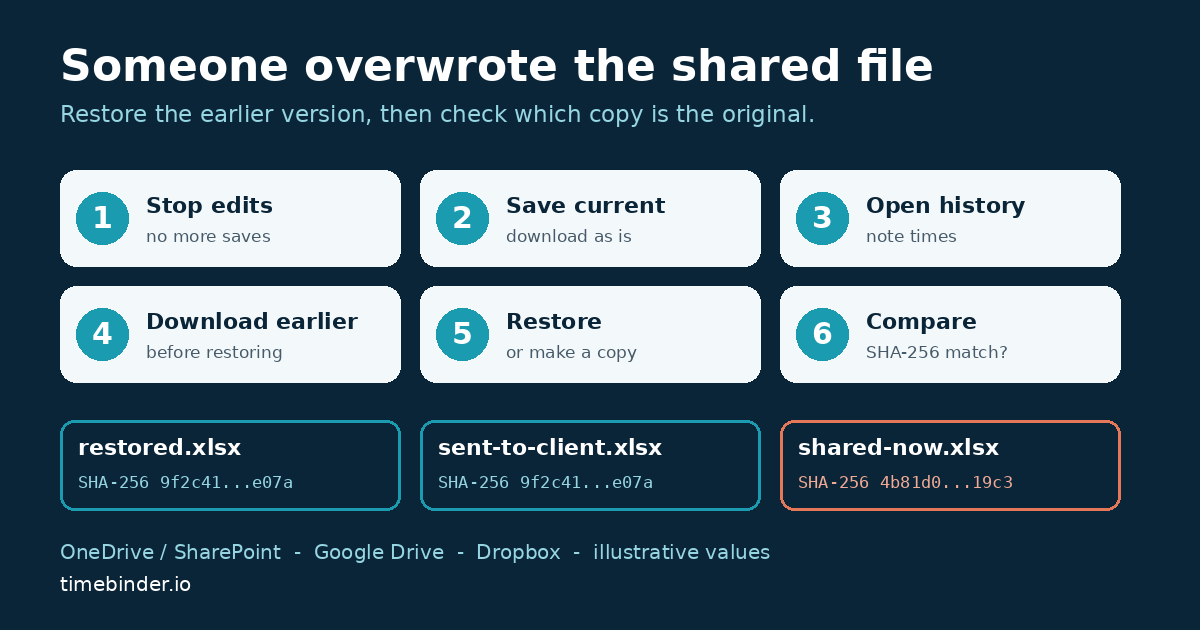
Short answer: stop anyone editing, download the overwritten file as it is now, then open the file’s version history and download the last good version before you restore it. OneDrive, SharePoint, Google Drive and Dropbox all keep earlier versions, but for a limited time that depends on the service, the file type and the plan. Restoring usually keeps the overwritten version in the history. To check which copy is the original, compare each candidate with something made outside the shared folder at the time: an email attachment, a handover copy, or a fingerprint you recorded earlier.
TimeBinder adds a layer of protection against AI and human fraud and disputes. A TimeBind is a dated, checkable record that an exact file existed no later than a recorded time and still matches. The fingerprint is made in your browser and the file stays on your device, so it gives you a check that sits outside the shared drive.
Last checked 18 November 2026 against Microsoft, Google and Dropbox help pages. Retention periods and menu names change; check your own plan and settings. General information, not legal or IT advice for a specific system.
Table of contents
The short answer
A colleague saved their draft over yours. A client uploaded “final_v3.docx” on top of the agreed version. Sync on someone’s laptop pushed an old copy back into the team folder. In each case the cloud service has almost certainly kept the earlier version, and you can get it back in a few clicks. The harder question comes next: when two people each say “mine is the real one”, which copy is the original?
This guide is a recovery-and-check routine for that moment. It is not a guide to choosing a backup service; for that, see our guide to secure cloud backup and versioning for creative files. The checks use our free file-integrity tools.
The first ten minutes: a six-step routine
- Stop further edits. Tell everyone working on the file to stop saving to it. If someone has it open in a desktop app with sync on, ask them to close it without saving. Every new save adds versions and, on services that cap the number of versions, can push older ones out.
- Download the current, overwritten file as it is. Do not fix it first. It shows what happened, and you may need it later.
- Open version history and find the last good version. Note the date and time shown, and the name of the person the service lists for each version. Take a screenshot of the version list.
- Download the earlier version before you restore it. In Google Drive, also mark it Keep forever for files other than Docs, Sheets and Slides. In Google Docs or Sheets, consider Make a copy of the earlier version rather than restoring over the live file.
- Restore, or work from the copy. In all four services, the restored version becomes the new current version and the overwritten one normally stays in the history. Tell your collaborators which version is now live.
- Fingerprint what you downloaded. Put both downloads into the SHA-256 file hash checker and write the two fingerprints, the file names and the version times in a short note. Our file handover log builder gives you a simple format.
Steps 2 and 4 matter most. Version history is a record held by the provider. It can expire, be merged, be limited by an administrator, or be deleted by someone with the right permission. A downloaded copy with a written fingerprint is yours.
Where the earlier version is, by service
Menu names below are from each provider’s own help pages, read on 18 November 2026.
OneDrive (personal, work or school)
Where: Right-click the file › Version history › … › Restore
How far back: Microsoft says 30 days; at work, admin settings apply
Many files at once: Restore your OneDrive: whole OneDrive to a point in the last 30 days (personal accounts need Microsoft 365)
SharePoint and Teams files
Where: Library › file › Version history
How far back: Last 500 versions by default in new Microsoft 365 libraries; library owners can change limits or turn versioning off
Many files at once: Microsoft says you can restore a whole document library; ask the site owner or IT
Google Docs, Sheets, Slides
Where: Last edit (or File › Version history) › pick a time › Restore this version
How far back: Kept in the file; you need edit access to see it
Many files at once: Not covered by Drive’s bulk restore tool; restore each file, or make a copy of an earlier version
Other files in Google Drive (PDF, Word, images)
Where: File information › Manage versions
How far back: A version may be deleted after 30 days or 100 newer versions, unless marked Keep forever
Many files at once: Restore file versions tool (beta) for many files, last 25 days
Dropbox
Where: … › Activity › Version history › Roll back to this version
How far back: 30 days (Basic, Plus, Family), 180 days (Professional, Essentials, Business, Standard), 365 days (Business Plus, Advanced, Enterprise)
Many files at once: Dropbox Rewind (paid plans) for a whole folder
OneDrive and SharePoint
Microsoft’s page on restoring a previous version of a file stored in OneDrive says version history works with all file types, including PDFs, CAD files and photos, that file version history is retained for 30 days, and that with a work or school account “your administrator may have turned off document versioning.” You can restore one file at a time from onedrive.com or from File Explorer if the OneDrive sync app is installed. The version you restore becomes the current version, and the previous current version moves down the list.
If many files were overwritten at once, for example by a bad sync or malware, Restore your OneDrive rolls the whole OneDrive back to a date within the last 30 days. Personal accounts need a Microsoft 365 subscription for this; without one you can still restore individual files.
For SharePoint and Teams files, versioning is a library setting. Microsoft’s How versioning works in lists and libraries says that for Microsoft 365 customers versioning is on by default for new libraries and saves the last 500 versions of a document. It also notes that not every save creates a version when AutoSave is on, and that by default the Contribute permission level includes Delete Versions. In other words, many ordinary editors can delete versions, not only IT. Library owners can change version limits in the versioning settings.
Google Drive, Docs and Sheets
Google treats its own editors differently from uploaded files.
- Google Docs, Sheets, Slides and Vids. Google’s Find what’s changed in a file explains how to view, restore, copy and name earlier versions. You need edit permission to see version history. You can name up to 40 versions in a document and 15 in a spreadsheet, and Google warns that revisions are sometimes merged. Restoring an earlier Sheets version clears the cell edit history for changes before the restore, so make a copy if that history matters. Owners of personal Google Accounts can delete version history permanently.
- PDFs, Word files, images and other uploads. Google’s Check activity and file versions page says “a version might be permanently deleted after 30 days or if there are 100 newer versions”, unless you choose Keep forever under Manage versions. If someone used Upload new version over your file, this is where the earlier one is.
- Many files at once. Google’s Restore file versions tool (in beta when we checked) rolls back uploaded files to an earlier point and keeps the last 25 days of revisions. You cannot pick individual files with it, and it does not cover Docs, Sheets or Slides.
Dropbox
Dropbox’s version history overview gives the window by plan: 30 days on Basic, Plus and Family; 180 days on Professional, Essentials, Business and Standard; 365 days on Business Plus, Advanced and Enterprise, with add-ons that extend it. Upgrading does not reach back: the longer window starts on the day you upgrade. Version history does not apply to web-based files such as Google Docs or Microsoft Office Online files kept in Dropbox, and permanently deleted files cannot be restored.
To roll back one file, open its version history, preview the version and choose Roll back to this version; the file keeps its name. For a folder-wide mess, Dropbox Rewind undoes many changes at once, including in shared folders owned by other people, on the paid plans Dropbox lists. Rewind itself is added to the history and can be undone.
Which copy is the original?
Once you have the files back, people often disagree about which one is “the original”: the version you remember sending, the one the other side says they received, or the one the shared folder now shows. Version history helps, but it is the provider’s log, not an independent record. Its times are the service’s times, the window is limited, and versions can be merged or deleted. Our page on whether cloud version history is proof a file existed goes into its limits.
A practical order of checks:
- Look for a copy made outside the shared folder at the time. An email attachment you sent, a file uploaded to a client portal, a handover copy. These carry their own dates from a different system.
- Compare candidates byte for byte. Drop two copies into the file comparison checker. If the SHA-256 fingerprints match, the files are identical, whatever their names or dates say. File dates on a download are not a reliable guide; see what happens to file dates when you copy, zip or download.
- Check against an earlier recorded fingerprint. If you or the other side recorded a fingerprint before the dispute, for example in a TimeBind, the copy that still matches is the one that existed at that recorded time, byte for byte. Our walkthrough how to check a file still matches its fingerprint shows the steps.
- If nothing matches, look for innocent causes first. A re-saved file, a converted download or a different line ending all change the fingerprint without anyone changing the content you see. See same file, different hash for the common causes, and how to tell if a file has been changed for a wider routine.
One trap with Google Docs: when you download a Doc or Sheet as Word, Excel or PDF, Google creates a new file from the online document each time. Two downloads of the same version may not be byte-identical. If a fingerprint matters, record the fingerprint of the exact exported file you keep or send, and keep that file.
Illustrative example (not a real client): a small architecture practice keeps a fee schedule in a shared SharePoint library. A consultant uploads their own spreadsheet with the same name, which replaces it. The practice restores the earlier version from version history, then downloads it and compares it with the PDF and spreadsheet attached to the email it sent the client three weeks before. The spreadsheet’s fingerprint matches the attachment exactly, so the practice can show the client the same file it sent, without relying only on the library’s history.
If this could turn into a dispute
TimeBinder was co-founded by a lawyer, and the most common mistake we see is cleaning up too early: deleting “wrong” versions, renaming files, or restoring over everything before anyone has saved what was there. If a disagreement could become a claim, preserve first, tidy later. The rules differ by country, so do not assume one system’s rules apply to another.
- United States. Parties can come under a duty to preserve electronically stored information once litigation is reasonably anticipated. In federal courts, Federal Rule of Civil Procedure 37(e) deals with electronically stored information that should have been preserved and was lost because reasonable steps were not taken. State courts have their own rules.
- England and Wales. In the Business and Property Courts, Practice Direction 57AD sets out duties to preserve documents, including electronic ones, for anyone who knows it is or may become a party to proceedings. Other courts and the rest of the UK have their own procedures.
- European Union. There is no single EU-wide civil disclosure rule; procedure is national, and disclosure is generally narrower than US discovery. If the files contain personal data, the GDPR also applies to how you keep and share copies.
Practical steps that suit most systems: keep the overwritten copy and the restored copy, do not delete versions, screenshot or export the version list and activity log, write a dated note of what you did and when, and get advice from a lawyer qualified where the dispute will be heard. This is general information, not legal advice.
Next time: make the original easy to find
- Know your window: 30 days is common on personal and entry plans. A problem found in month two may be too late.
- Name the versions that matter (Google Docs, Sheets), mark Keep forever on key uploads (Google Drive), or keep major versions in a separate “issued” folder that only one person can edit.
- Do not reuse a file name for a new document. “Final” overwrites “final”.
- When you send a milestone file, keep the exact copy you sent and record its fingerprint. A cloud folder is a working space, not a record.
- Version history and backup are different jobs from a dated record; our backup and versioning guide covers the backup side.
A TimeBind does not show who made a file, that it is original work, or that its content is true, and it does not stop anyone overwriting a shared copy. It gives you a dated, checkable record that the exact file existed no later than the recorded time, and lets anyone check later whether a copy still matches.
Frequently asked questions
-
Can I get back a file someone overwrote in OneDrive or SharePoint?
Usually, yes, if versioning is on. Right-click the file, choose Version history, and restore the version from before the overwrite. Microsoft’s OneDrive help says version history is kept for 30 days, and at work or school your administrator may have turned versioning off or limited it. New SharePoint libraries in Microsoft 365 keep the last 500 versions by default.
-
How far back does Google Drive keep old versions?
It depends on the file type. Google Docs, Sheets and Slides keep their own version history inside the file. For PDFs, Word files, images and other uploaded files, Google says a version might be deleted after 30 days or once there are 100 newer versions, unless you mark it Keep forever.
-
How far back does Dropbox version history go?
Dropbox says 30 days on Basic, Plus and Family, 180 days on Professional, Essentials, Business and Standard, and 365 days on Business Plus, Advanced and Enterprise. Version history does not cover web-based files such as Google Docs or Microsoft Office Online files stored in Dropbox.
-
Does restoring an earlier version delete the overwritten one?
Normally not. In OneDrive, SharePoint, Google Drive and Dropbox, the version you restore becomes the new current version and the overwritten version stays in the history. Download a copy of both before you restore anyway, because history can expire or be deleted.
-
Is version history proof of which copy is the original?
It is useful evidence of what the service recorded, but it is a log kept by the provider and controlled by account owners and administrators. Versions can expire, be merged or be deleted. An independent record, such as a copy you sent at the time or a recorded fingerprint, is a stronger way to check which copy existed when.
-
Why doesn’t the earlier version I downloaded match my recorded fingerprint?
Either it is not the same version, or the bytes changed on the way out. A Google Doc is converted every time you download it as Word or PDF, so a new download may not be byte-identical to an older one. For uploaded files, check that you picked the right version and that the download finished, then compare in the file comparison checker.
Sources checked
- Microsoft Support, Restore a previous version of a file stored in OneDrive and Restore your OneDrive, read 18 November 2026.
- Microsoft Support, How versioning works in lists and libraries and Enable and configure versioning for a list or library.
- Google Docs Editors Help, Find what’s changed in a file; Google Drive Help, Check activity and file versions and Restore files in bulk, read 18 November 2026.
- Dropbox Help, Dropbox version history overview and How to use Dropbox Rewind, read 18 November 2026.
- Cornell Law School LII, Federal Rules of Civil Procedure, Rule 37.
Record a fingerprint you can check later
- Open the app and sign in with email or Google.
- Add the exact files you want to keep. They stay on your device.
- Seal them and download your Proof of Time certificates.
Your first Pooled TimeBind is free, with no card required. After that, Pooled TimeBinds start from US$5, and an ASAP TimeBind is US$15. Open TimeBinder, or see plans and pricing.