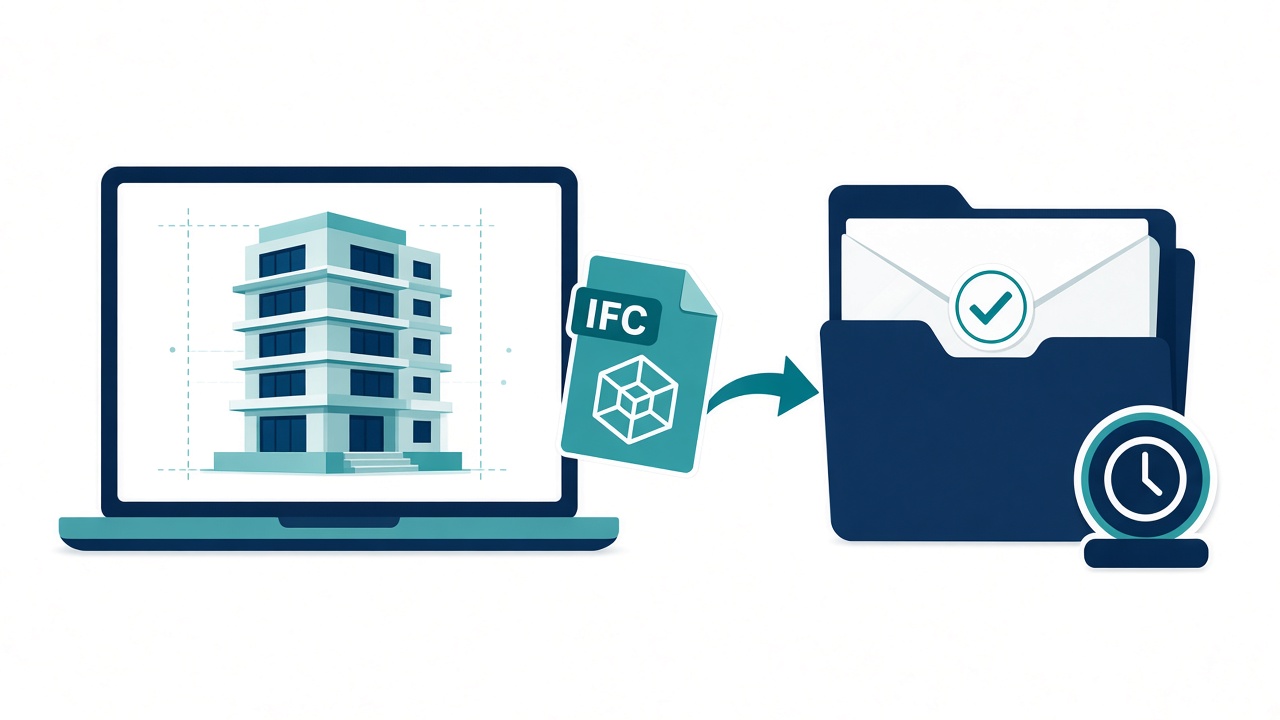
TimeBinder adds a layer of protection against AI and human fraud and disputes. For BIM teams, that means a dated, checkable record of exactly which model file you issued.
“That is not the model we received.” On a BIM project the argument is rarely about whether a model was shared. It is about which one. The native authoring file changes every day, exports are made for different recipients, and by the time a clash or a quantity query is raised the project folder holds ten candidates.
The most practical thing to freeze is the file that actually left your office. For many issues that is an IFC export. This guide explains why, what to record alongside it, and how a dated fingerprint fits with a common data environment (CDE) and the ISO 19650 practices UK and European teams already use. It is general information, not legal advice.
Table of Contents
- Why the IFC you issue is a good thing to freeze
- What the file itself can and cannot tell you
- How this fits with a CDE and ISO 19650 practice
- The IFC snapshot routine
- What to keep with each issue
- Using the snapshot in a dispute
- How a TimeBind fits, and what it does not show
- Frequently asked questions
- Sources checked
Why the IFC you issue is a good thing to freeze
IFC (Industry Foundation Classes) is, in the words of the ISO 16739-1:2018 abstract, “an open international standard for Building Information Model (BIM) data that are exchanged and shared among software applications”. The page also notes that the edition has since been withdrawn and revised by ISO 16739-1:2024. The standard specifies a data schema and an exchange file format, with a clear-text encoding defined in ISO 10303-21. A subset of the schema, called a Model View Definition (MVD), supports a recognised workflow, and conforming software has to identify the one it follows.
For disputes, three features matter:
- It is a file. The native model is a living database. An IFC export is a single file that you can name, send and fingerprint.
- It is what other parties actually receive. Consultants and contractors often work from the export, not from your authoring file.
- It is software-neutral. Anyone can open the archived IFC later in a viewer, without your authoring software.
Native files (RVT, DWG and similar) still matter, and you should keep them. But “the model” as a thing that existed on the day is best pinned down by the exports you issued. For the native-model side, read timestamp Revit or BIM model versions before you issue them.
What the file itself can and cannot tell you
An IFC file in the clear-text format starts with a header. The buildingSMART Finland guideline shows a typical one: a FILE_DESCRIPTION naming the view definition, a FILE_NAME with a time stamp (for example 2020-12-18T08:58:25), author and organisation fields, and the originating system. That is useful metadata for your own housekeeping.
It is not an independent record of when the file existed. The header is plain text written by the exporting software, and it is part of the file like everything else. Re-exporting an unchanged model can produce a different file, because the header carries a time stamp. So fingerprint the exact export you sent, not “the model at the time”.
A fingerprint of the exported file, recorded with a time that does not depend on your computer or your CDE, gives you something the header cannot: a check that the file you hold today is the same file that existed by the recorded time.
How this fits with a CDE and ISO 19650 practice
The UK BIM Framework’s guidance on the common data environment describes information moving from Work in Progress to Shared and then Published, with an Archive that is a “journal of information transactions, providing an audit trail of information container development”. It also explains revision control through metadata: each information container carries a revision code and a status code, so recipients know what the container may be used for.
A well-run CDE already gives you a lot. A dated fingerprint adds a record kept outside the CDE and your own systems. If a dispute is about whether an archived file is still the file that was issued, you can fingerprint the stored file again and compare it with the certificate. For the longer comparison, see BIM CDE version history vs a timestamp.
One contractual point from the AIA B101-2017 sample is worth bringing into any appointment. Section 1.3 says the parties “shall agree upon written protocols governing the transmission and use of, and reliance on, Instruments of Service or any other information or documentation in digital form”, and §1.3.1 says any reliance on a building information model without agreed protocols is “at the using or relying party’s sole risk”. Whatever form you use, say in writing what each export is for.
The IFC snapshot routine
- State the purpose. Coordination, planning submission, tender or construction. Put it in the transmittal. This matters more than the file name.
- Choose the view and schema. Export to the IFC version and view your project information requirements specify, and note it.
- Export once, then stop. Do not open and re-save the IFC in other software. Note the authoring software and version used.
- Name it with your project convention, including revision and status codes if you use the ISO 19650 national annex approach.
- Create a TimeBind of the export and its transmittal sheet in the TimeBinder app. Your browser makes the fingerprint and the files stay on your device. Up to 10 files per TimeBind.
- Issue through your CDE or by transmittal. Record the TimeBind date in your issue log.
- Store the certificate with the issued file in the archive container.
What to keep with each issue
| Item | Why |
|---|---|
| The IFC export, unchanged | The file other parties received |
| Transmittal with purpose, recipient and revision | What it was for and who got it |
| Software name and version, schema and view | Lets someone reopen it the way you meant |
| PDF sheets issued with it | Shows what the drawings looked like at the same issue |
| The certificate | Dated record that this exact file existed and still matches |
Using the snapshot in a dispute
- Identify the file in question. Ask for the exact file the other party relied on.
- Check it matches. Fingerprint it and compare with the certificate for that issue. A match means it is the same file; a mismatch means it is not.
- Look at the content separately. A TimeBind says nothing about what is inside the model. Open the IFC in a viewer to see whether the wall, level or element in dispute is there.
- Bring in your contract and protocols. Check what the exchange was for and who was meant to rely on it.
How a TimeBind fits, and what it does not show
The CDE, your information protocols and the contract govern how models are shared and relied on. A TimeBind adds an independent record of the exact file you issued, which makes “that is not the model we received” much easier to test: either the file matches the fingerprint or it does not.
A TimeBind shows that this exact file existed no later than the recorded time and still matches its fingerprint. TimeBinder makes the fingerprint in your browser and the file stays on your device. It does not show who made the file, who owns it, or that anyone agreed to it. It does not show what is inside the model, who modelled it, or that the model was suitable for the purpose it was issued for. It complements your contract, the RIBA or AIA documents you use, and legal advice; it does not replace them. This is general information, not legal advice.
Frequently asked questions
Why IFC and not the native model?
The IFC is a single file that other parties actually receive and that can be opened in any viewer. The native model keeps changing, so it is hard to point at one version. Keep both, but freeze what you issue.
If I export twice, will the fingerprint match?
Not necessarily. The header carries a time stamp written at export, so an unchanged model can still produce a different file. Fingerprint the exact file you send.
Does the time stamp in the IFC header count as a record?
It is a value the exporting software writes into a plain-text header. It is useful housekeeping, but it is not an independent record of when the file existed.
Does this replace my CDE?
No. A CDE manages status, revisions and access. A TimeBind adds a record held outside it and your own systems of the exact file at issue.
What does it cost?
Your first Pooled TimeBind is free, with no credit card required. After that, Pooled TimeBinds start from US$5, and an ASAP TimeBind is US$15 when the date must be recorded straight away. Prices checked 10 November 2026.
Is this legal advice?
No. It is general information about records. Your appointment, BIM execution plan and protocols decide how models may be used and relied on.
Sources checked
Checked on 10 November 2026. We quote only what these documents say and mark where a point depends on your own contract or local law.
- ISO 16739-1:2018 (iso.org catalogue page): abstract of IFC, exchange formats, MVDs; status: withdrawn and revised by ISO 16739-1:2024. We read the catalogue page, not the full standard
- buildingSMART Finland, Inframodel IFC header guidance: example of an IFC header with time stamp and originating system. buildingSMART International’s own site blocked our fetch
- UK BIM Framework, Guidance Part C: Facilitating the common data environment: CDE states, archive as audit trail, revision and status metadata. Read in place of ISO 19650 itself; the file name says Edition 2 and the page footer says Edition 1
- AIA Document B101-2017 (sample, contractdocs.aia.org): §§1.3 and 1.3.1 on digital protocols. Standard form; signed agreements are often modified
Freeze your next IFC issue
Make the fingerprint in your browser, keep the files on your device, and file the certificate with the issued export. Your first Pooled TimeBind is free, with no credit card required. After that, Pooled TimeBinds start from US$5, and an ASAP TimeBind is US$15. Prices checked 10 November 2026. See plans and pricing. Open TimeBinder